
How to Record Meetings and Capture Whiteboard Photos on iPhone
When a decision is made around a whiteboard, the audio tells you what people said and the photo shows what they were looking at. FrameMemo is an iPhone voice recorder that keeps both in one recording. After the meeting, you can read a summary, search the transcript, and play the original audio from a matching timestamp.
You’ll need an iPhone running iOS 26 or later. Recording doesn’t require a FrameMemo account or an AI API key.
1. Start recording and take a photo of the whiteboard
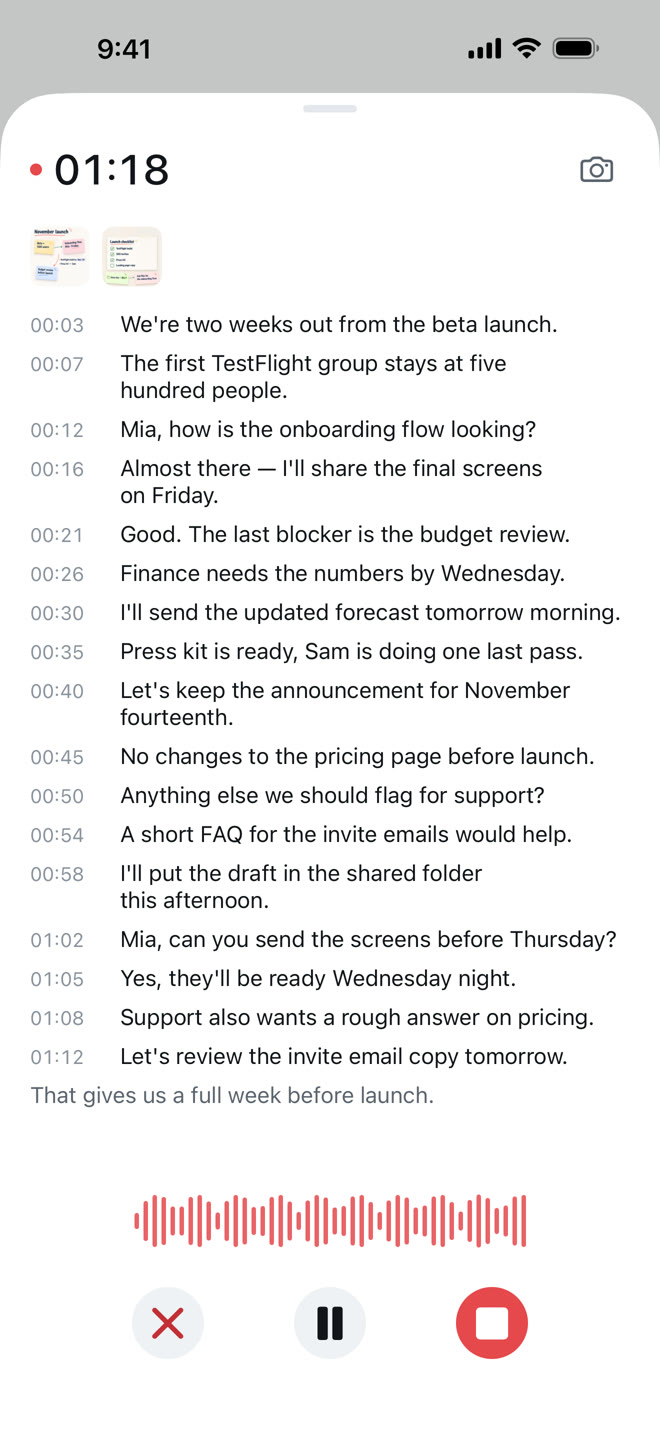
Open FrameMemo and tap the red microphone button. Allow microphone access if prompted. While the recording is running, tap the camera icon, allow camera access on first use, and take a photo. Close the camera to return to the recording screen. The audio keeps recording while you take the photo.
In the sample November launch meeting, the whiteboard shows the beta target, the onboarding deadline, and when the budget review needs to happen. If you want to find a decision by searching later, say it aloud during the meeting so it appears in the transcript.
2. Open the saved recording and check the transcript
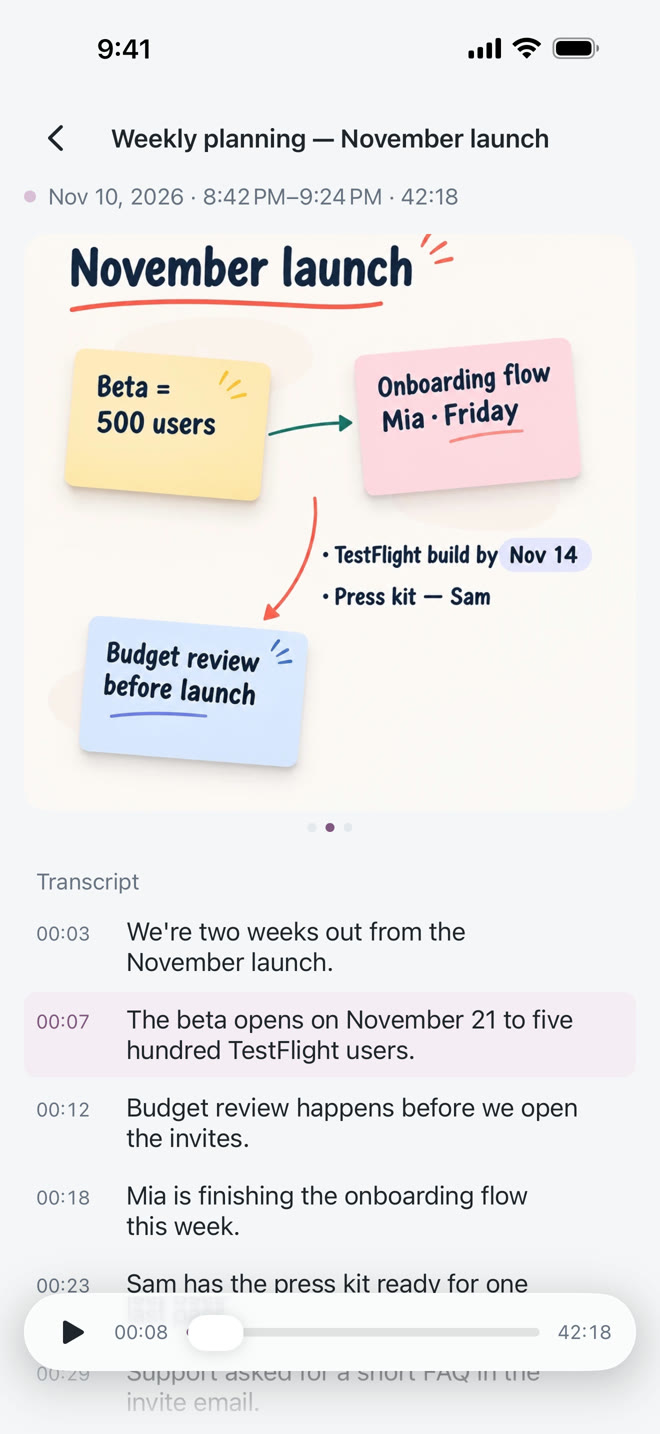
Tap the red stop button, then open the recording from your library. The photo, timestamped transcript, and audio player are all in the recording detail.
If the speech model is still preparing, you can keep recording. FrameMemo can fill in missing transcript text from the saved audio once the model is ready. Wait for transcription to finish before searching for a passage.
3. Read the on-device summary
Once the transcript is complete, look for the Summary card. If it shows Download summary model, tap it and confirm Download. The first download is about 700 MB. Use Wi-Fi and keep FrameMemo open until it finishes. The app then generates a title and summary on your iPhone.
In the sample meeting, the summary tells you that the beta opens on November 21 to 500 TestFlight users. You can skim the rest of the decisions while keeping the whiteboard photo available in the same recording.
4. Search for a phrase and replay the original audio
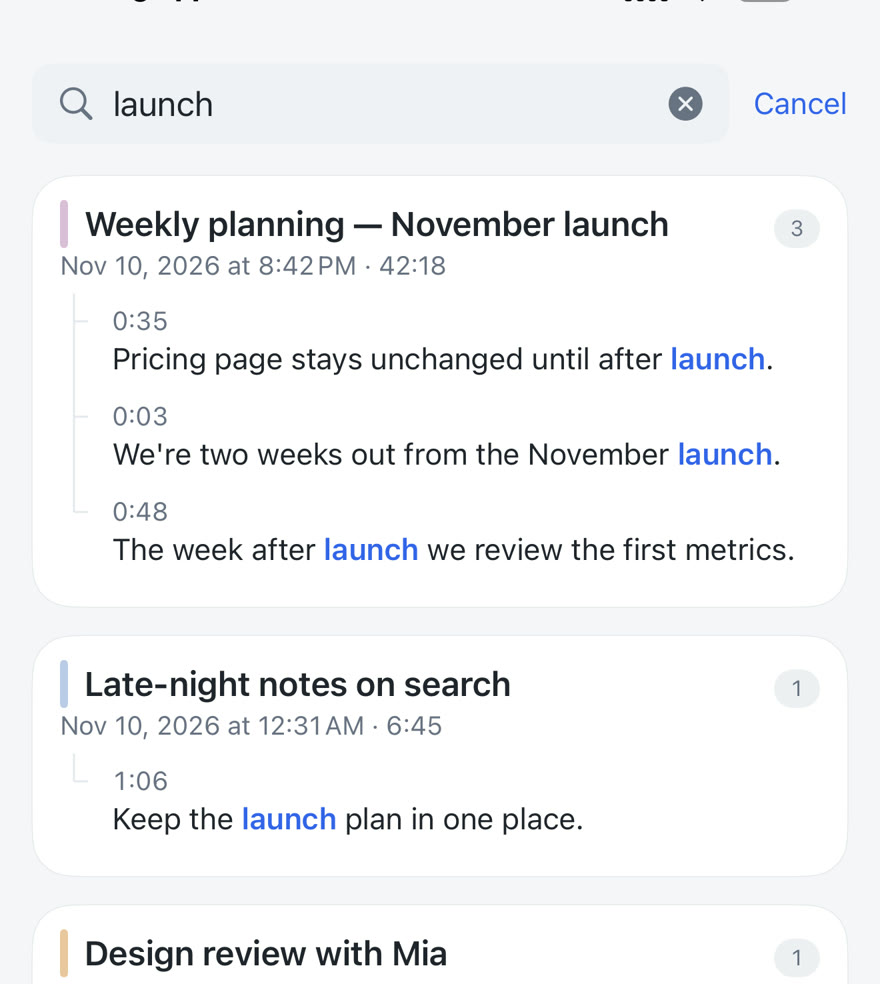
Go back to the recording library and tap Search all recordings. Enter a word you remember hearing. In the sample, searching for launch brings up this passage at .
Pricing page stays unchanged until after launch.
Tap that passage in the search results to open the recording and start playback at . You can hear the statement in context without scrubbing through the full meeting.
Where are the recording and photos stored?
FrameMemo stores the recording, photos, transcript, and summary on your iPhone. The first model downloads need an internet connection. If you choose to use Ask AI, it requires your own API key and sends relevant text to the provider you configure after you give permission.
Compare FrameMemo and Apple Voice Memos for in-person meetings