
How to Record Lectures and Capture Slide Photos on iPhone
Taking separate audio recordings in Voice Memos and slide photos in your Camera Roll leaves you hunting through two apps weeks later when studying for an exam. FrameMemo keeps the lecture audio, slide photos, timestamped on-device transcript, and automatic summary inside one recording—with no monthly subscription.
Requirements: an iPhone running iOS 26 or later. Always follow your school’s or speaker’s recording policy before recording a class or talk.
1. Start recording—even in lecture halls with weak Wi-Fi
Open FrameMemo and tap the red microphone button. Because transcription and summarization run locally on your iPhone, recording does not depend on lecture-hall Wi-Fi once your on-device models are prepared.
You can lock your iPhone or return to the Home Screen to save battery during a long session—FrameMemo’s background audio mode keeps your recording active until you stop it. If the speech model is still preparing, FrameMemo keeps recording and fills in missing transcript text from the saved audio automatically afterward.
2. Snap slides and chalkboard diagrams without stopping audio
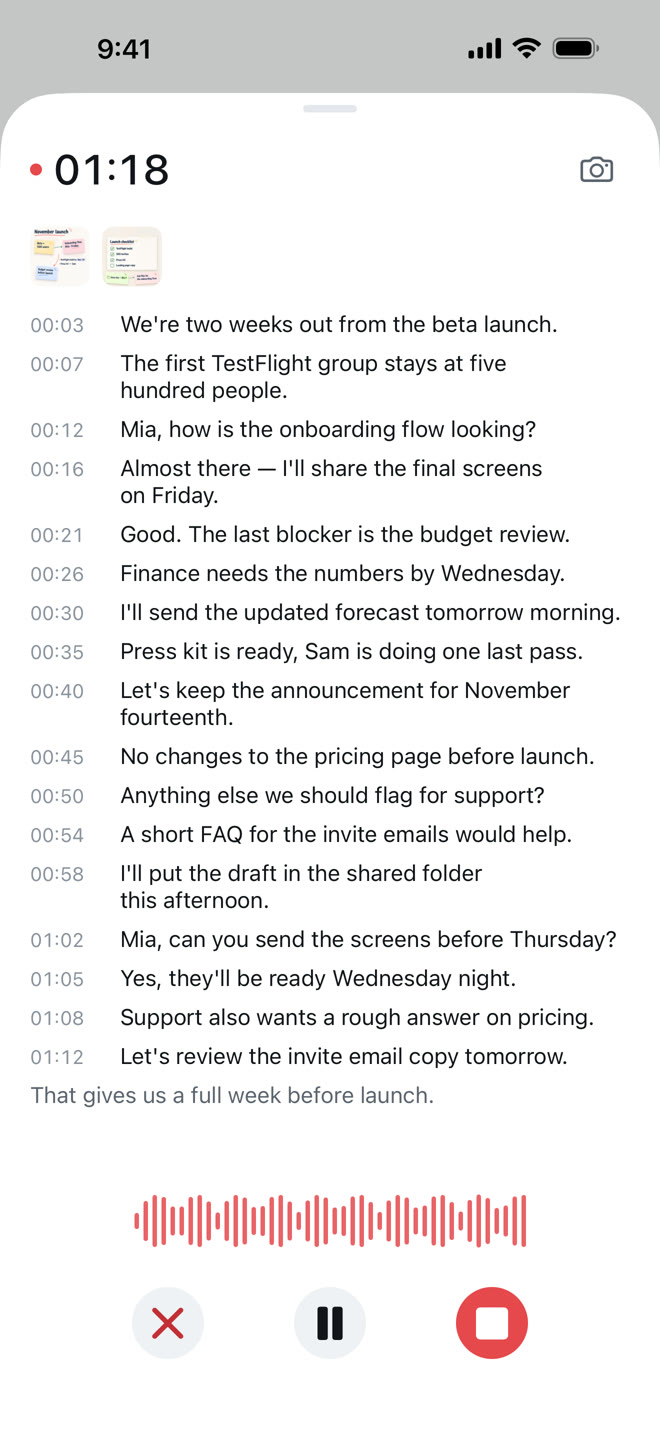
Whenever the speaker puts up a dense diagram, equation, or reading list, tap the camera button in the upper-right corner of the recording panel. Audio keeps running continuously while you take the photo, and the image is attached directly to that lecture entry instead of getting buried in your photo library.
Live transcription stays visible on the recording panel once speech resources are ready, making it easy to verify that key terms were captured.
3. Skim the local summary and jump to exact explanations
After you stop recording, FrameMemo generates an automatic title and summary locally on your iPhone (after a one-time download of the ~700 MB on-device summary model over Wi-Fi; later lectures reuse the same model).
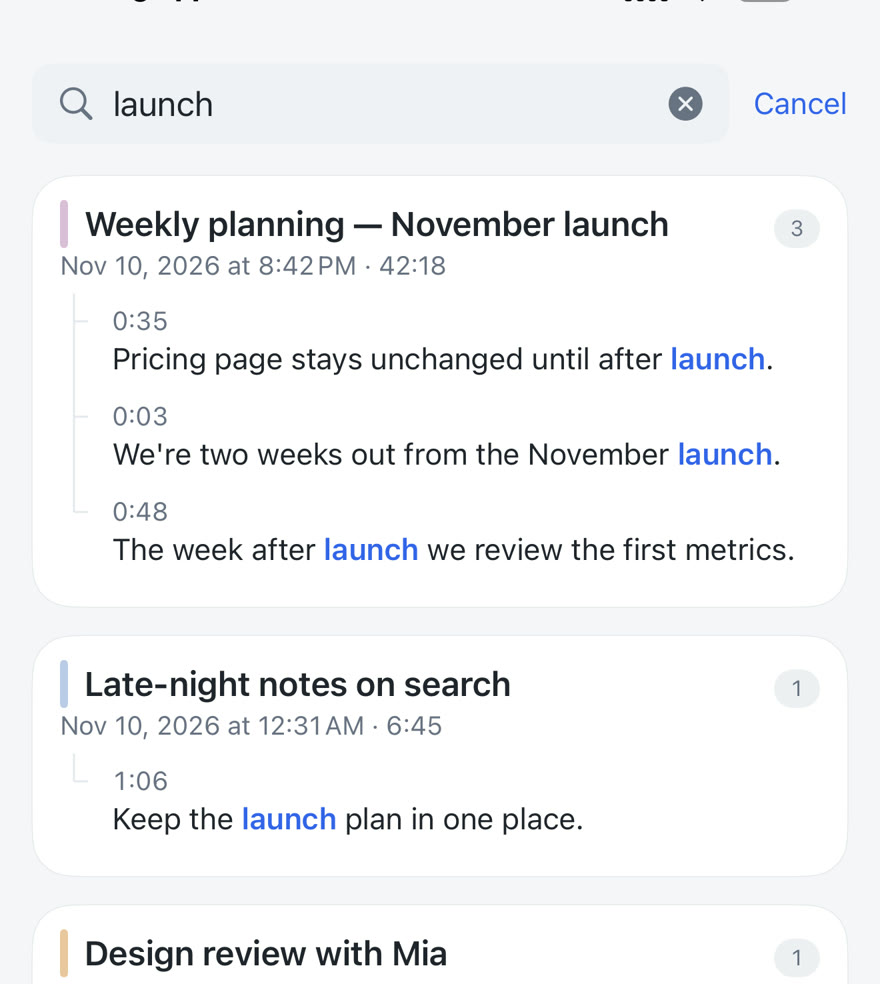
When reviewing for an exam, open Search all recordings and enter a concept, author name, or deadline mentioned in class. Tap any matching passage in the results to open that lecture and start audio playback at the exact timestamp.
No monthly subscription or cloud upload
FrameMemo is a $9.99 one-time App Store purchase with no monthly transcription minute caps and no account required. Your lecture audio, slide photos, transcripts, and summaries stay on your iPhone.
If you want to ask follow-up questions across multiple lectures, you can optionally configure your own OpenAI-compatible API key in Ask AI (only text is shared after you grant permission for that provider; audio and photos are never sent).
Compare FrameMemo vs. Otter.ai for offline, no-subscription transcription